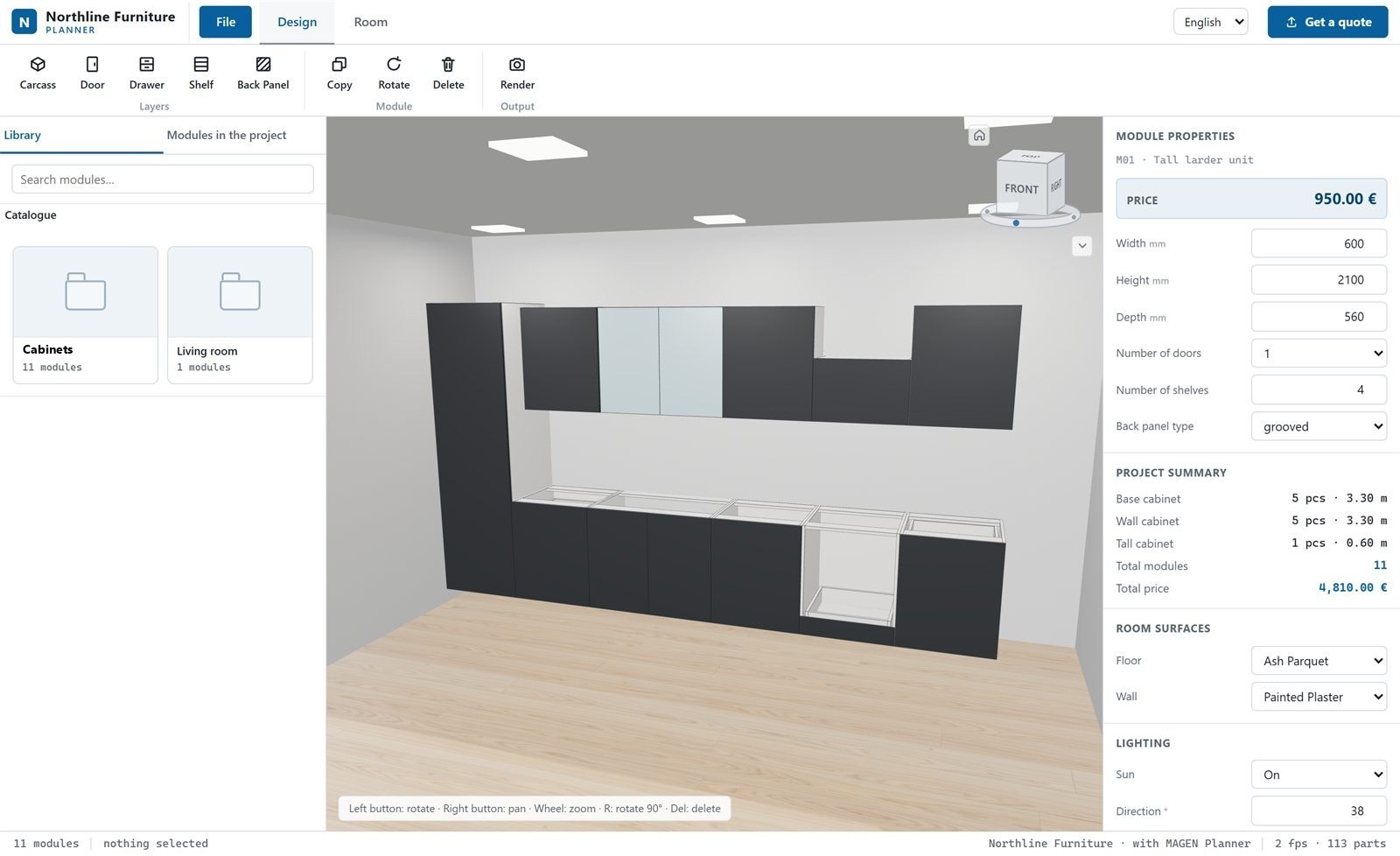
Quoting Made Easy
A short introduction to turning a design into a quote during the sales meeting.

3D Configurator · Quotes · Orders · Production
A 3D configurator and sales platform for furniture manufacturers and dealers: room planning, instant pricing, branded quotes, manager approval and SOLIDWORKS-ready orders — all from one catalog.
Product Tour
Every screen below comes from the software itself, shown with a sample company and a sample catalog. Pick a step or work through them in order.
Step 01 / 09 Planner Sales
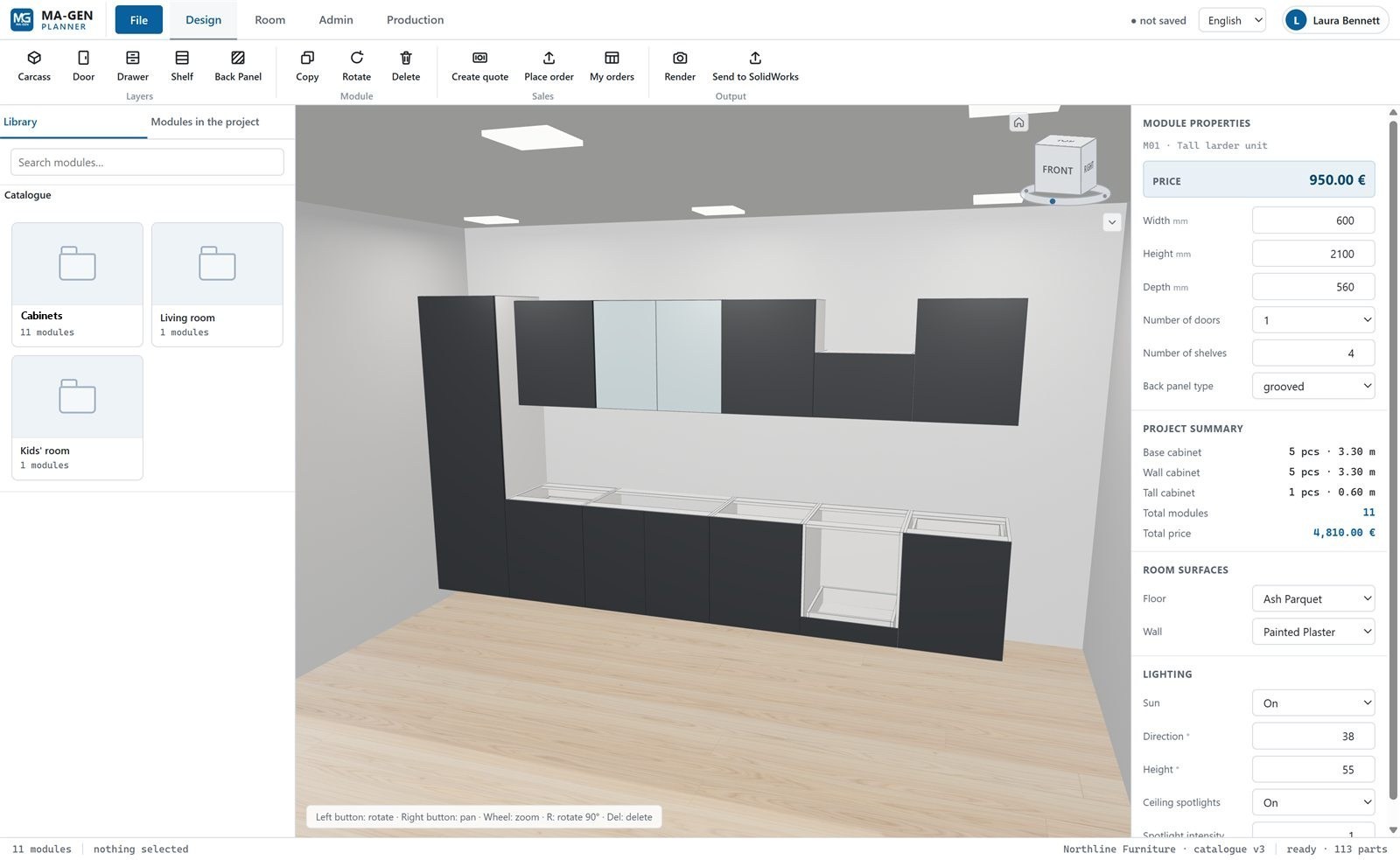
Your salesperson adds modules from your catalog to the room and changes sizes and options together with the customer. The model, the price and the project summary update on the same screen with every change.
Step 02 / 09 Planner Sales
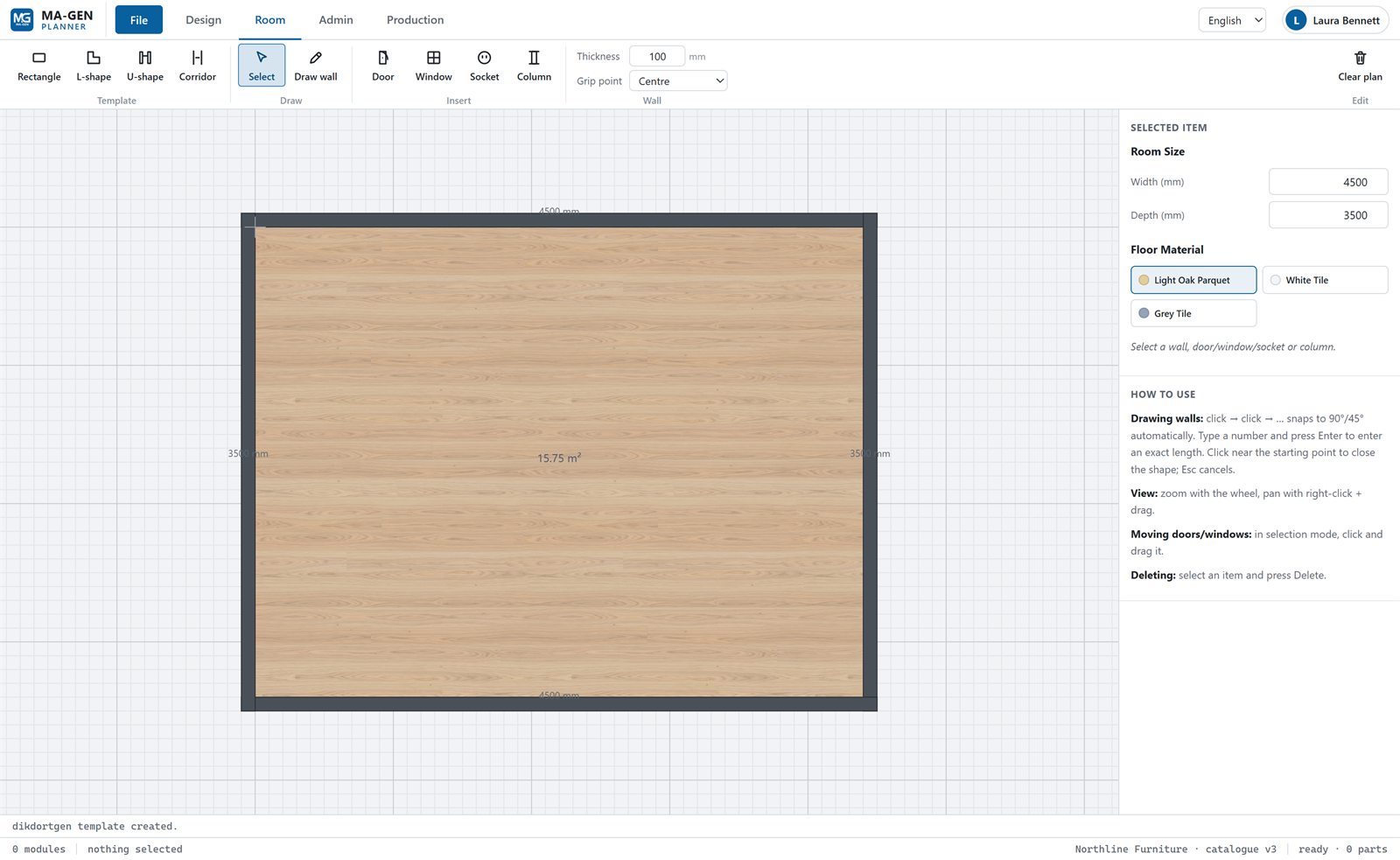
Every project starts with the room. A template sets it up in a few clicks, or you can draw any shape with the wall tool. Modules snap to these walls, and the customer sees the furniture in their own space.
Step 03 / 09 Planner Admin
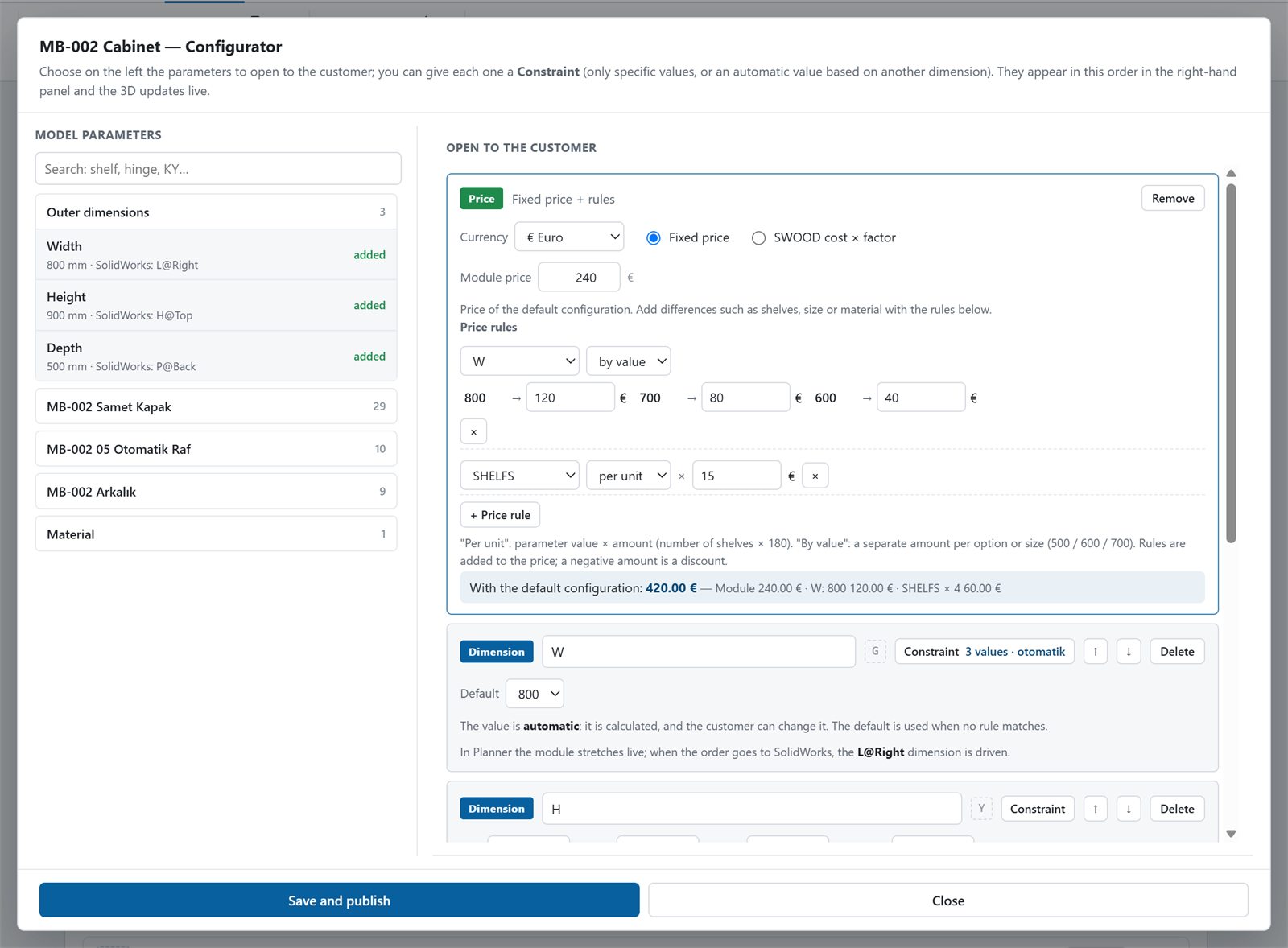
Send your modules to Planner from the MAGEN Planner tab in SOLIDWORKS, pick a category and add them to the catalog. You decide what salespeople and customers may change, and within which limits.
Step 04 / 09 Planner Admin
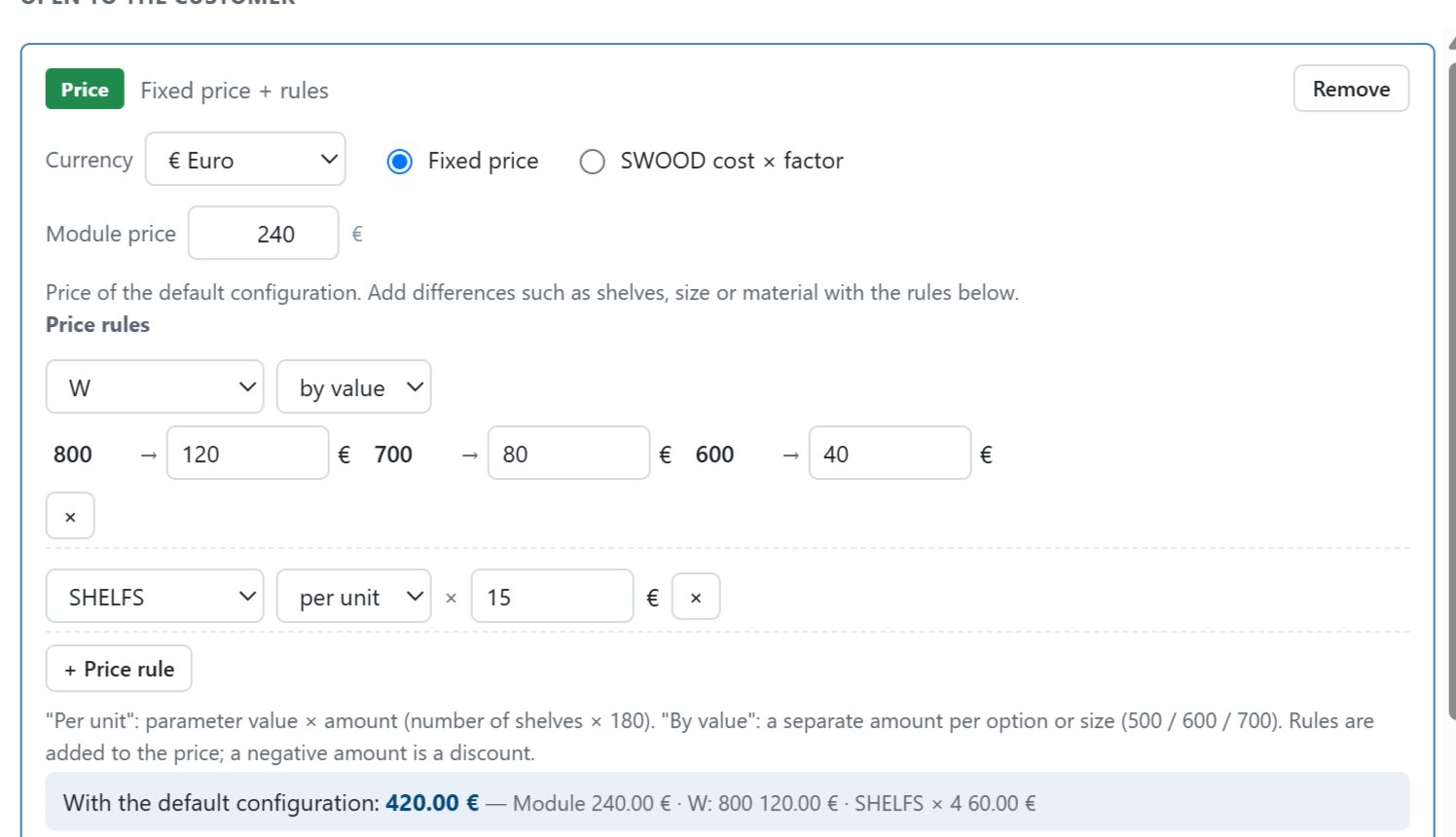
Prices are set in the module’s configuration window. Choose one of two methods; whenever a salesperson changes a dimension or the number of shelves, the price is recalculated on the spot.
Step 05 / 09 Planner Sales
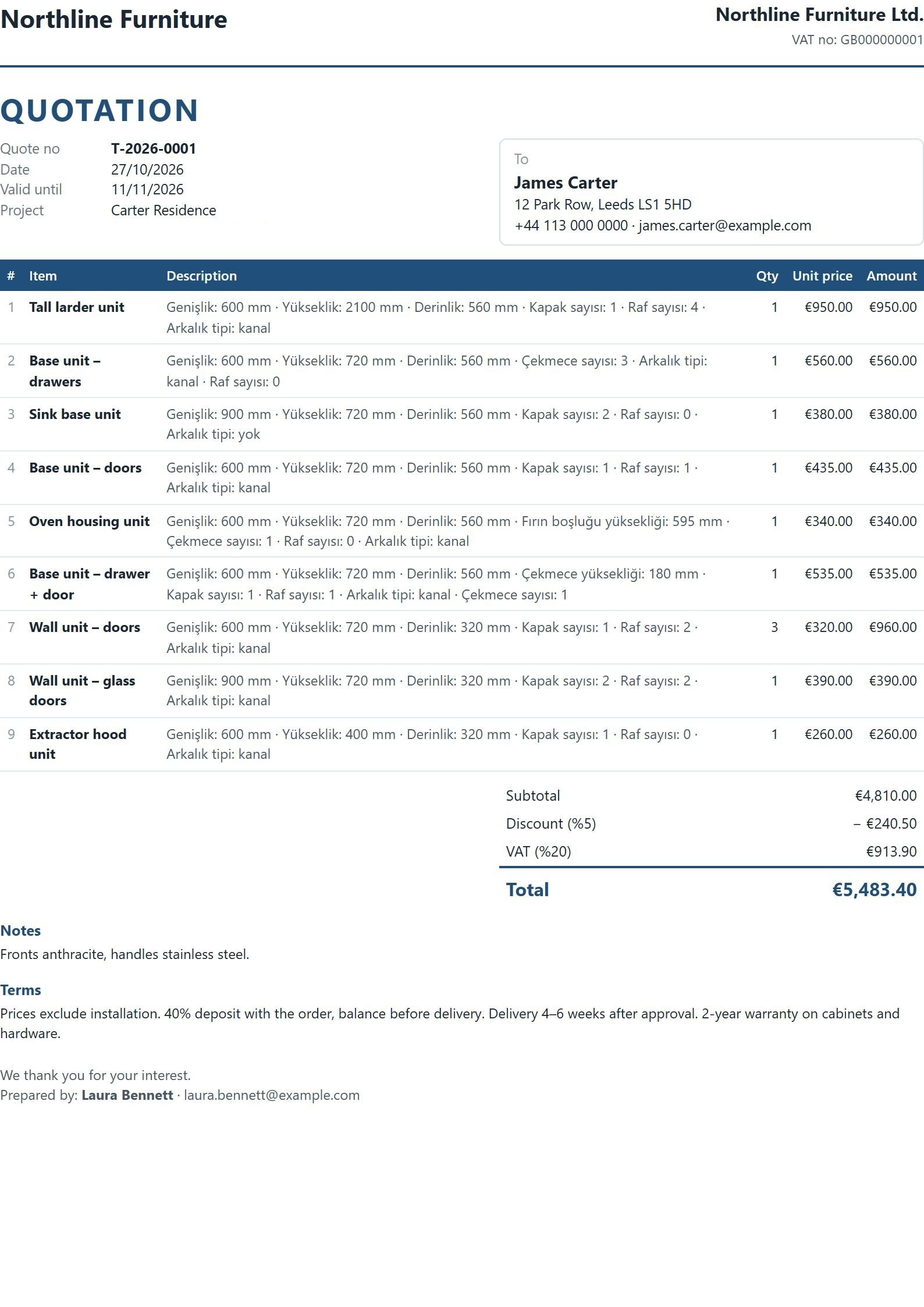
When the design is ready, enter the customer details and any discount in the “Create quote” window; items and totals come straight from the design. The quote gets a number and is saved and opened as a PDF.
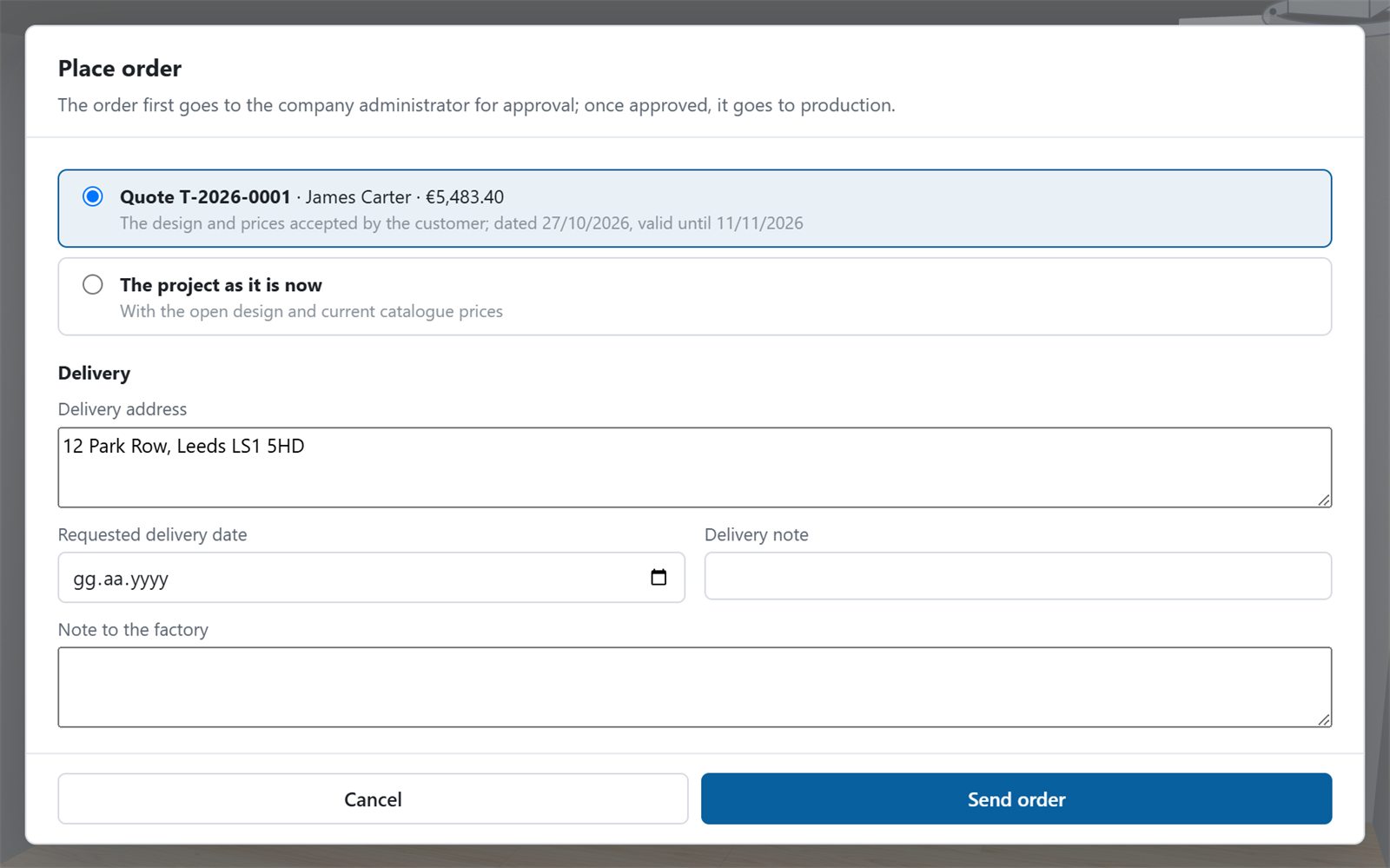
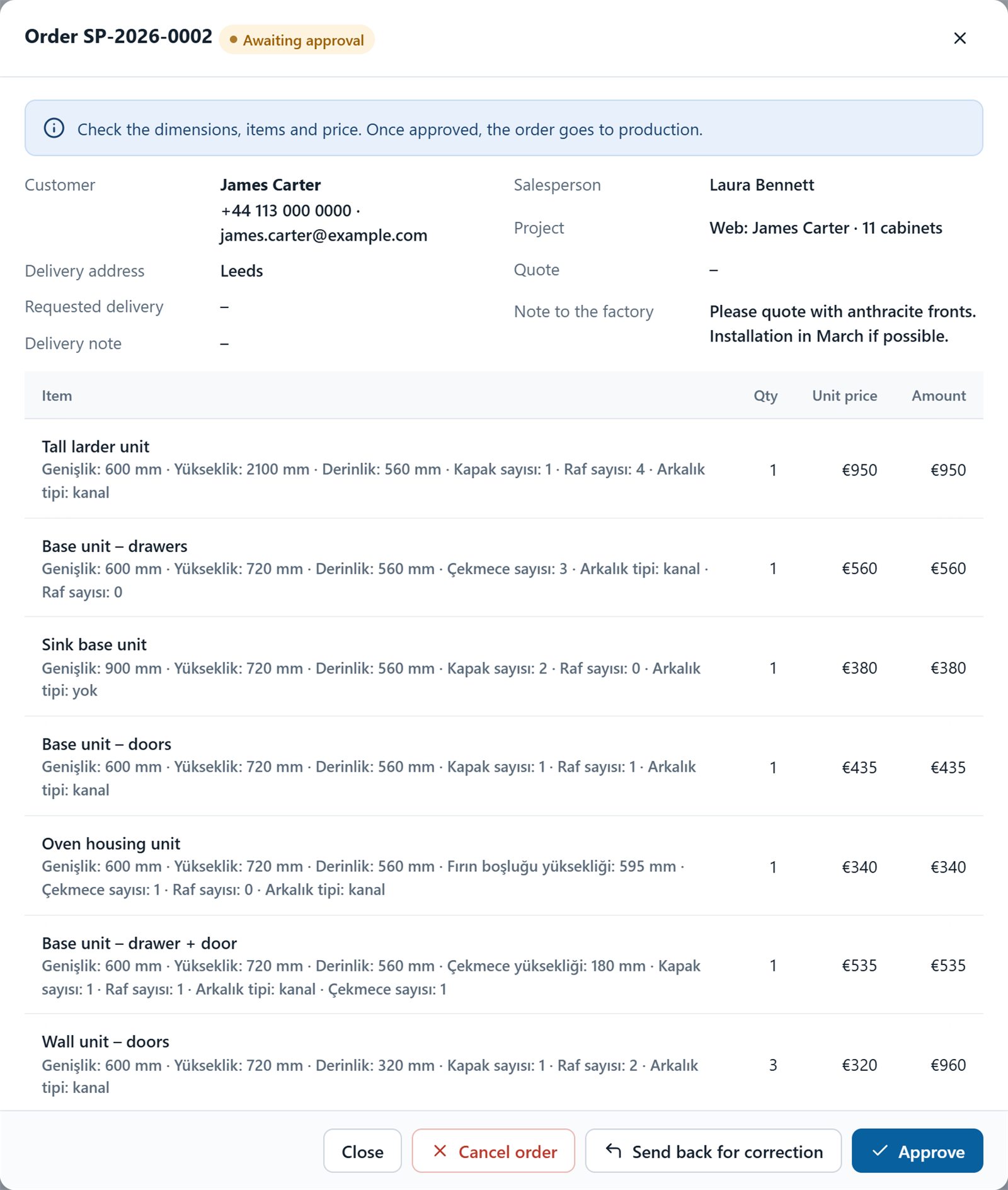
Step 06 / 09 Planner SalesPlanner Admin
Once the customer accepts, the salesperson places the order from the quote or from the current state of the project. Before it reaches production, someone with a Planner Admin license checks the dimensions, items and price.
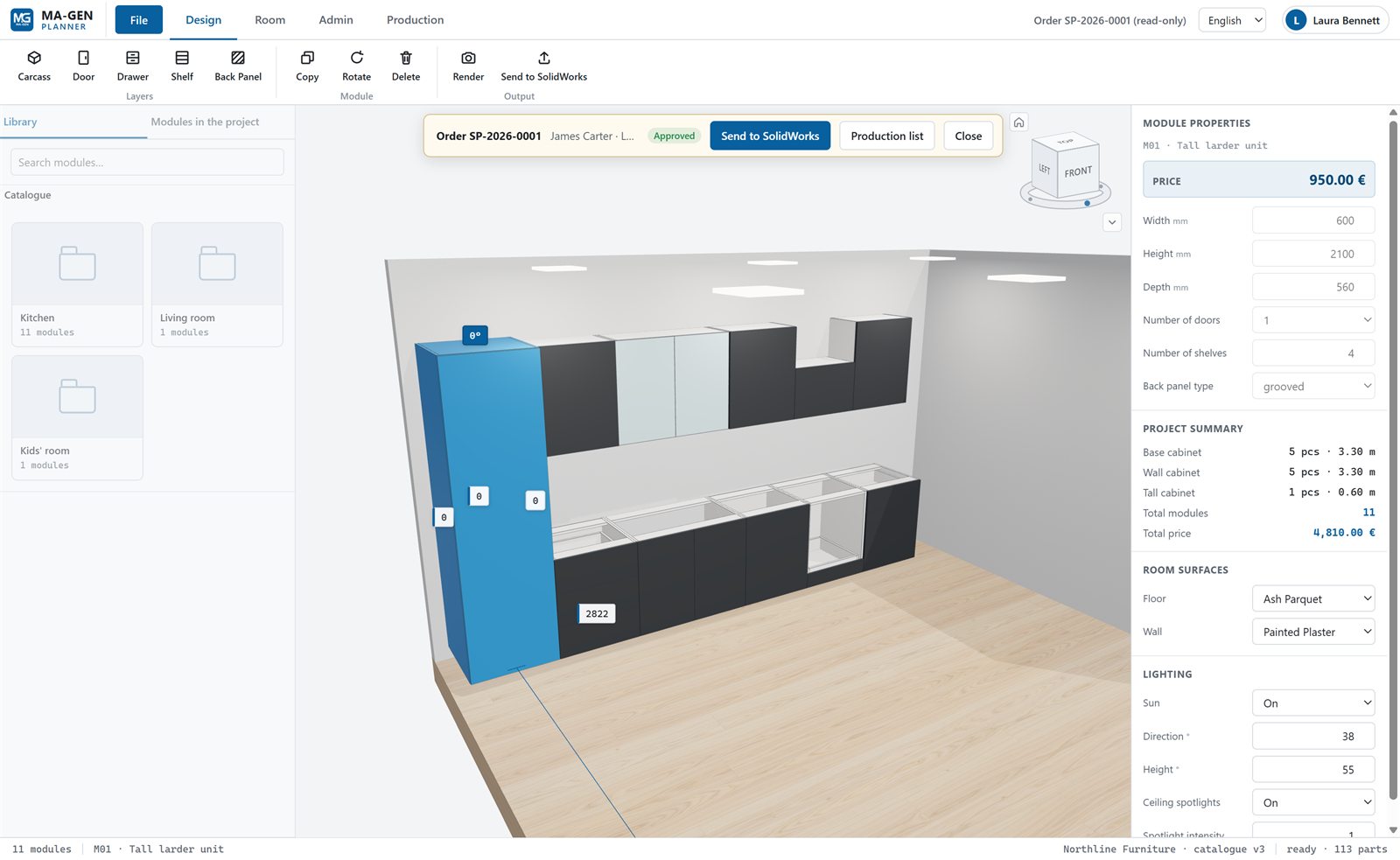
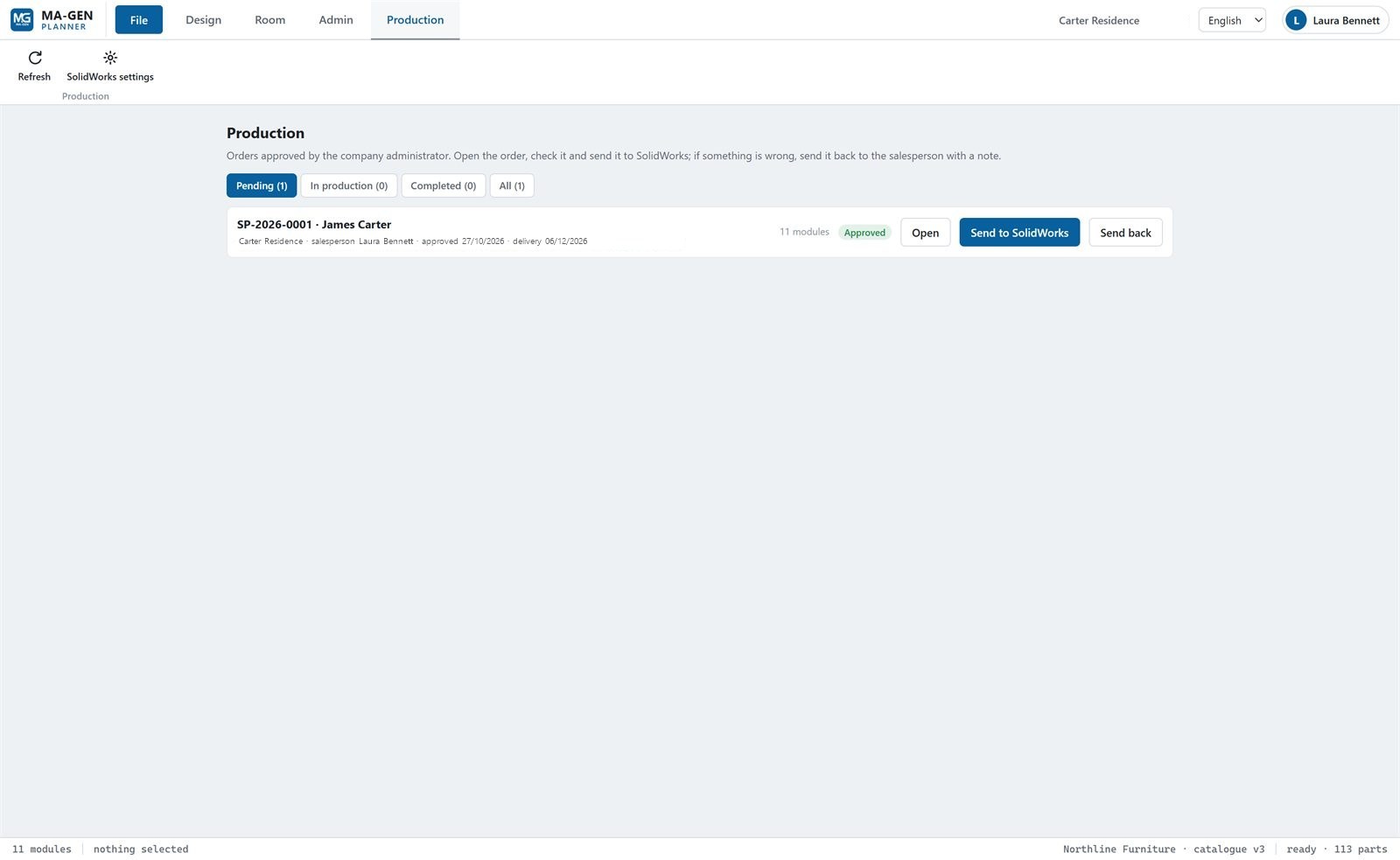
Step 07 / 09 Planner Production
Every approved order lands in the engineering office’s Production tab. The order opens read-only, is checked, and goes to SOLIDWORKS at the push of a button.
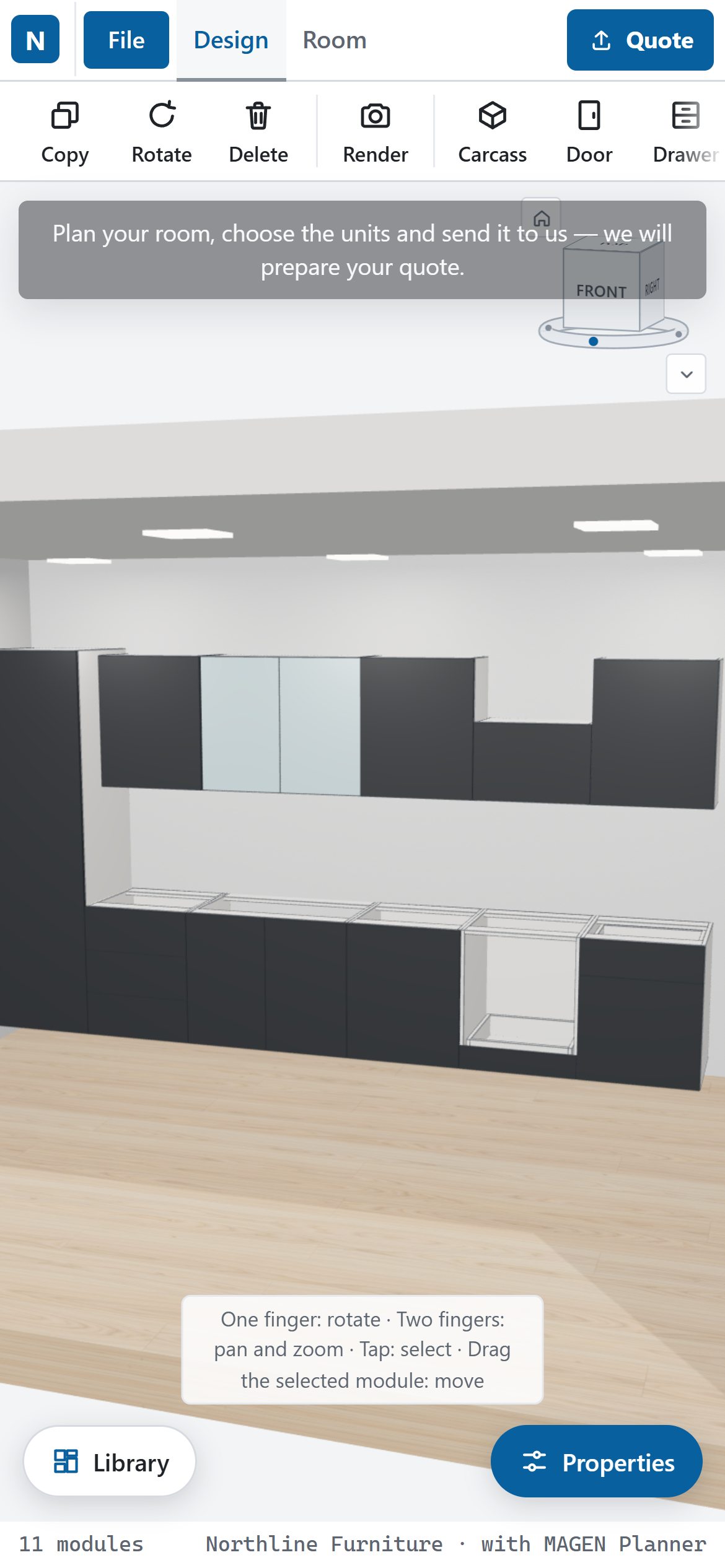
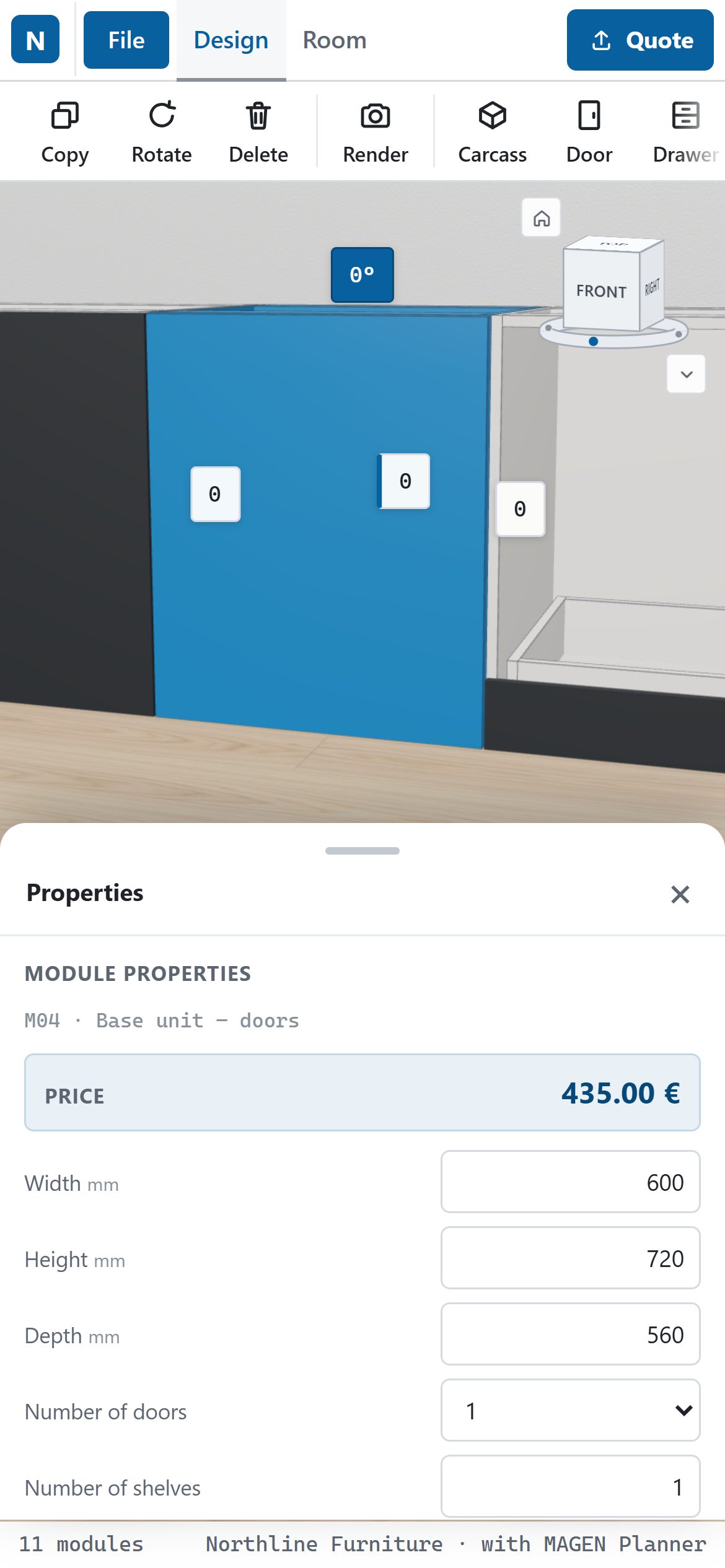
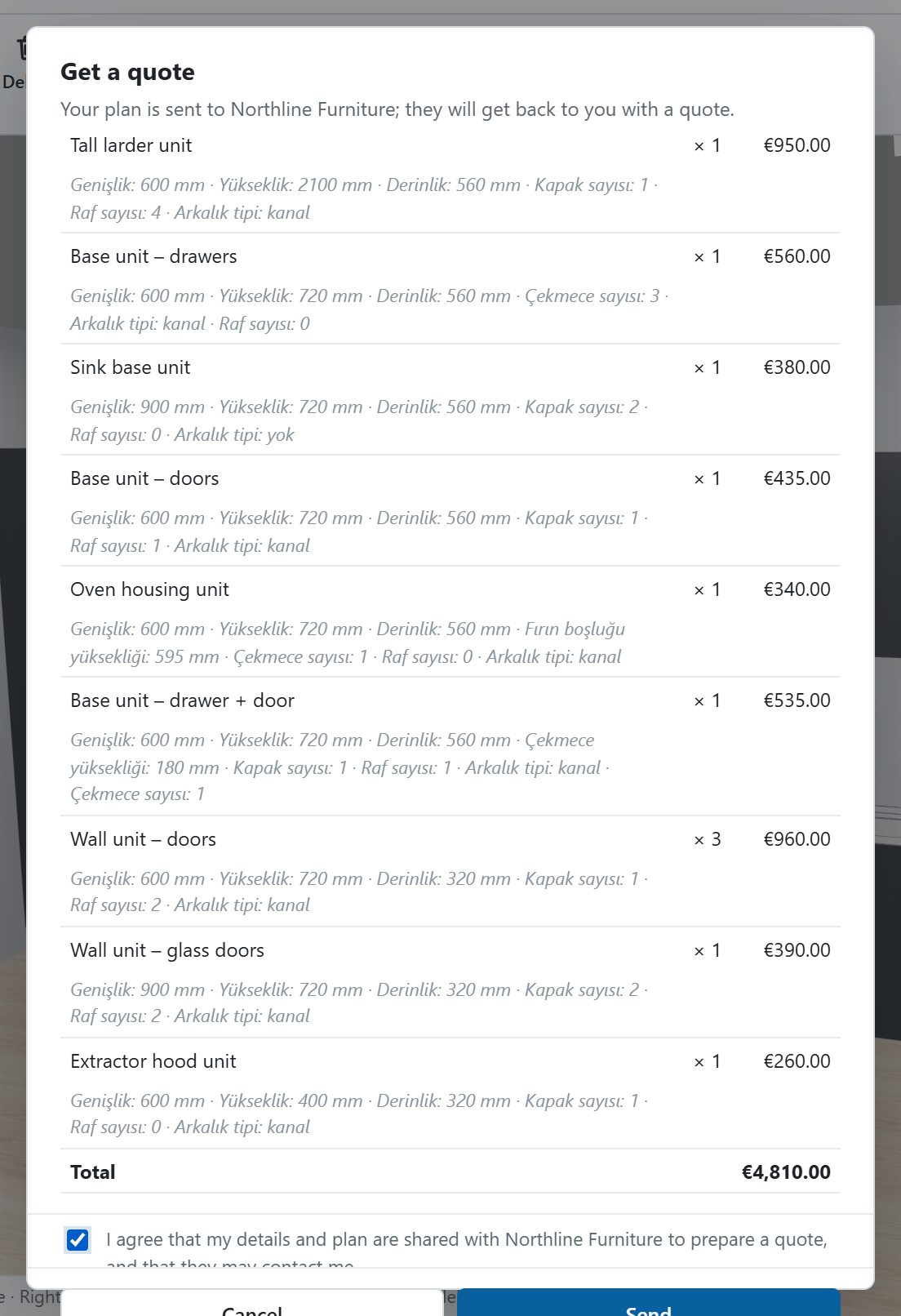
Designing on a phone, properties opening from the bottom, and the quote request a visitor sends.
Step 08 / 09 Planner Web
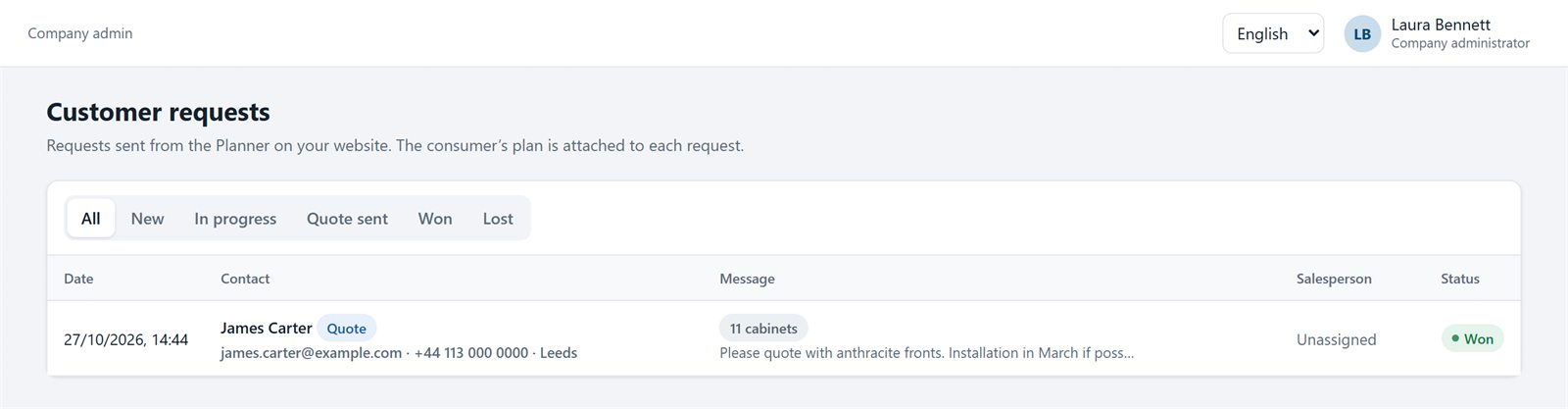
Planner Web brings the same catalog to your website. Visitors draw their room, choose and configure modules and send you the design without signing in; the request lands in your panel with the plan and the items.
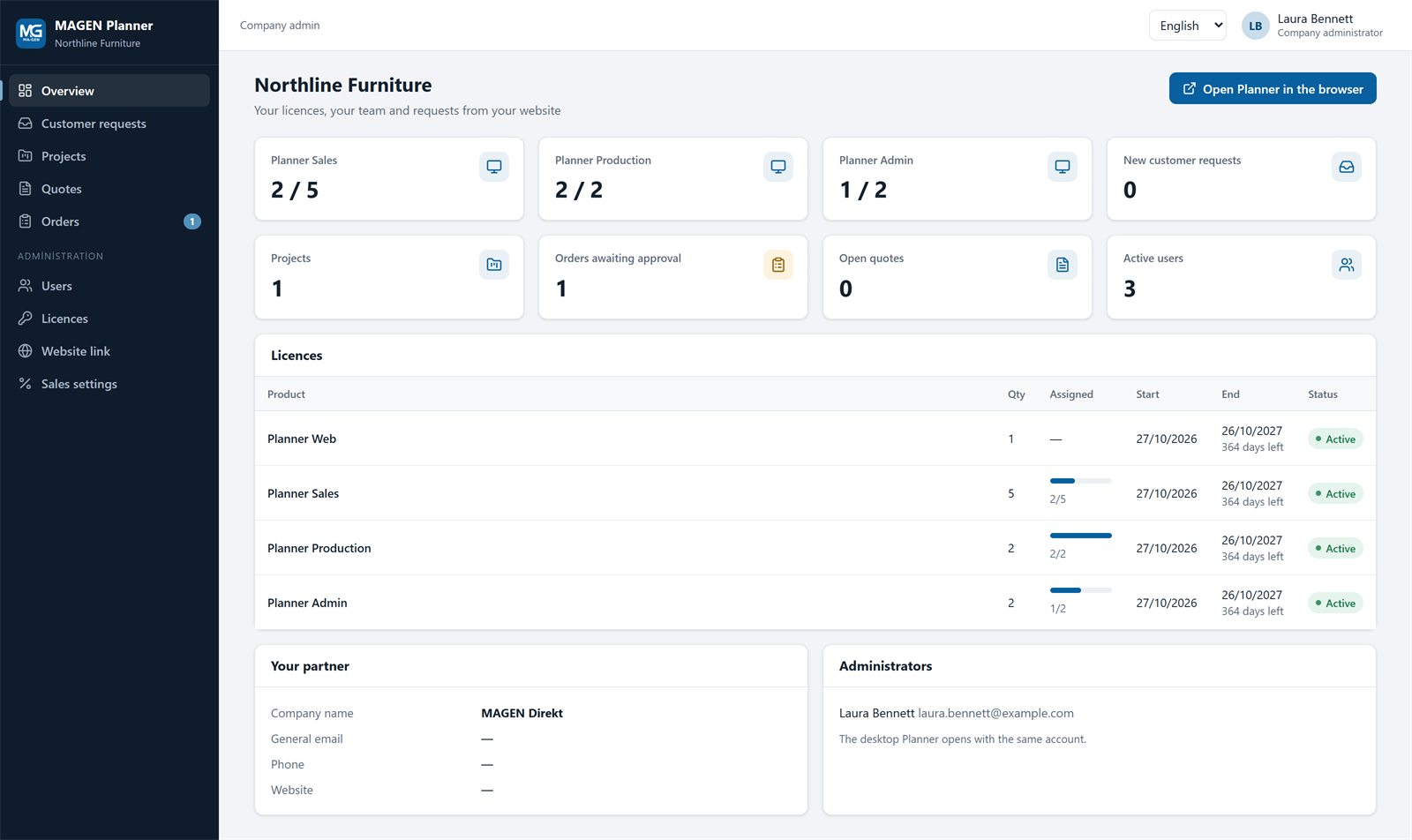
Step 09 / 09 Company administrator
The web-based company panel brings users, licenses, customer requests, quotes and orders together. Salespeople see their own records; administrators see everything.
Demo & Quote
Tell us about your product range and sales process, and we will work out together how the configurator, quoting and production transfer should be set up for you.
Watch on Video
The videos play right here — click a preview to start. The videos are in Turkish.
A short introduction to turning a design into a quote during the sales meeting.

Customers configure the product themselves on your website — on a computer, tablet or phone.
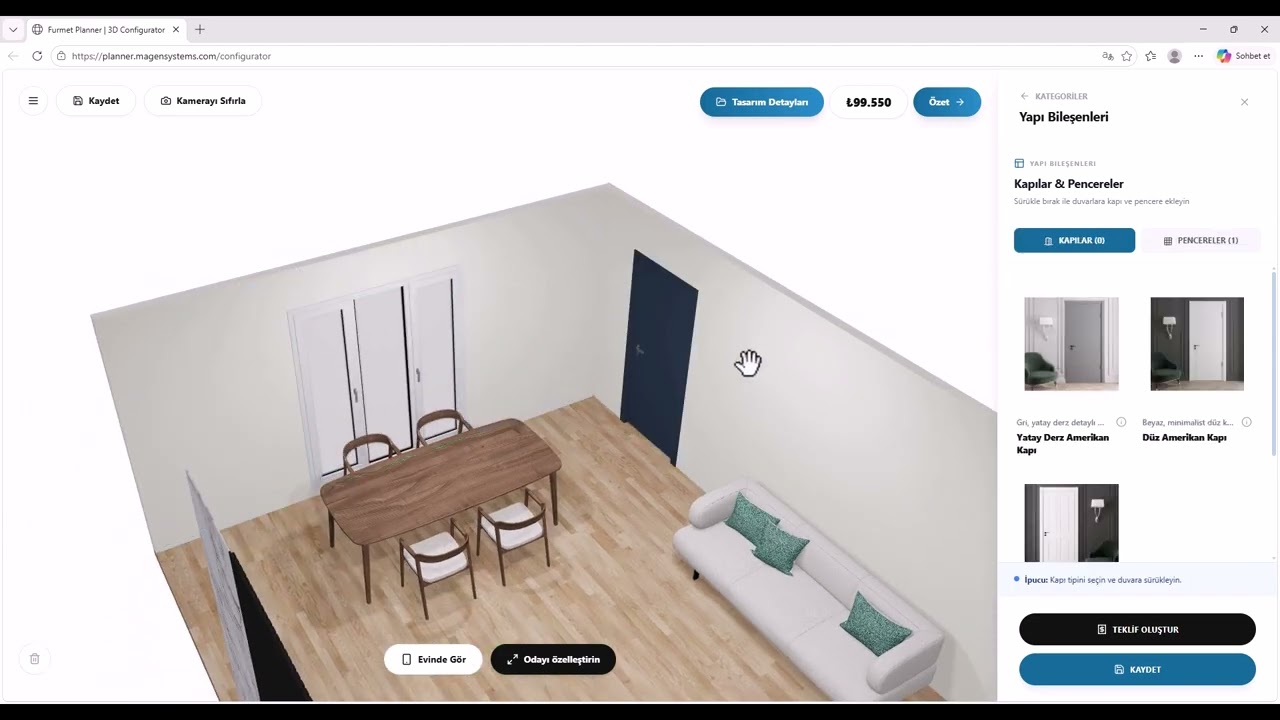
A quick look at working with rooms, modules and options.

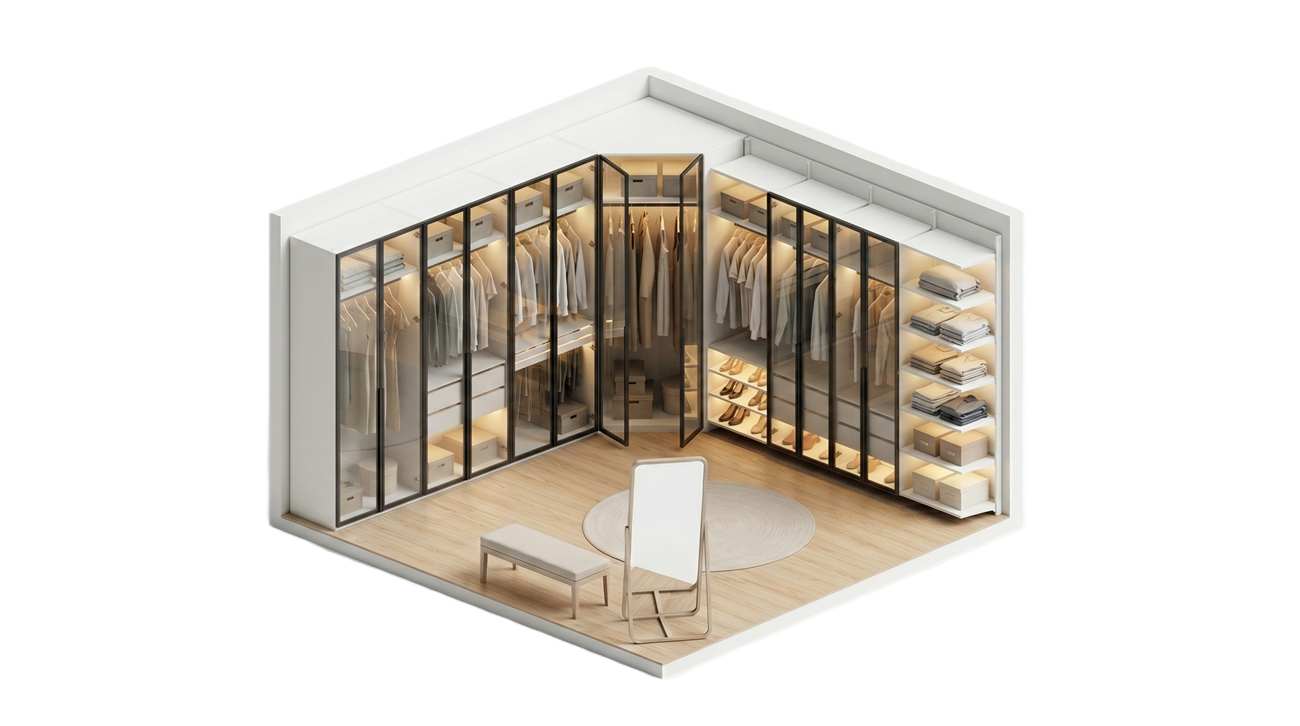
An example of planning a wardrobe project in 3D.
Try It Now
This is the same configurator your customers would use on your website. Add a module from the sample catalog, change its size and options, and turn it around in the room.
The Difference
The same sales process two ways: steps done by hand, and steps connected by one catalog.
From Sales to Production
Each step is done by someone holding the license shown under it. One person can hold several licenses.
Licenses
Each company assigns its users and licenses itself in the company panel. Signing in to the desktop app requires at least one Sales, Production or Admin license.
The consumer configurator on your website.
Website visitors, end customers
Everything in sales, from design to order.
Sales reps, store and dealer teams
Moving approved orders into production.
Engineering office, production planning
Catalog and order decisions.
Product managers, company managers
Per-user licenses can be reassigned in the panel when roles change.
| Person | Role | Licenses |
|---|---|---|
| Owner or sales manager | Company administrator | Sales, Admin |
| Salesperson | User | Sales |
| Engineering office (SOLIDWORKS) | User | Production; Admin if they maintain the catalog |
| Your website | — | Planner Web (one per company) |
Fill in the form for pricing and a license mix that fits your team.
| Desktop | Windows 10 or 11, 64-bit; installs without administrator rights |
| Screen | 1280 × 720 or larger; 1920 × 1080 recommended |
| Graphics | Runs on current graphics cards; a dedicated card makes rendering much faster |
| Web | Runs in the browser; works on phones and tablets |
| Internet | Needed for sign-in, the catalog and cloud saving; works offline for up to 7 days after the last license check |
| SOLIDWORKS · SWOOD | Only on computers that import modules into the catalog or send orders to production |
Who Is It For?

Import your catalog from SOLIDWORKS once, and let your sales team, dealers and website sell the same products with the same pricing rules.
Draw the room with the customer at the table, change options together and hand over a numbered quote in the same meeting.
They see the product in 3D, in their own room and to their own sizes, and decide based on what they see.
Frequently Asked Questions
Yes; it is 3D furniture design and configurator software built for selling furniture. Your sales team, dealer or a customer on your website draws the room to size, places modules, changes options and sees the price instantly; the design turns into a quote and an order. Detailed production design stays in SOLIDWORKS and SWOOD.
Yes. Your modules are imported from SOLIDWORKS with the MAGEN Planner add-in, and you define the dimension, door, shelf and material options as well as the pricing rules. Our team supports you through the first catalog setup.
No. Only the computers that import modules into the catalog or send approved orders to production need them. Salespeople use the desktop Planner, and website visitors use their browser.
The “Website link” page in the company panel gives you the link and a ready-made line of code to paste into your site. If you list allowed domains, the planner only works on those sites; if the code is copied somewhere it shouldn’t be, generate a new one.
No. Visitors design without signing in; they only enter their contact details when sending a request and agree to share them with you. The request arrives in your panel with the plan and the chosen items, and you are notified by e-mail.
There are two methods: rules added to a fixed module price (per unit, a table by value or a formula), or a price calculated from SWOOD cost (material, edge banding, hardware) with a multiplier.
No. Whether visitors see prices is a setting in the company panel; with prices hidden, visitors simply configure the product and send a request.
Yes. Salespeople cannot go beyond the maximum discount in the sales settings; company administrators have no limit. The VAT rate, quote validity and terms are set in the same place.
Yes. The PDF quote shows your logo, your company details and your payment, delivery, installation and warranty terms. It is produced in your company account’s language.
Planner works with the modules in your catalog, whether wardrobes, bathrooms, office, bedroom or other modular furniture. Whatever products you put in the catalog can be designed.
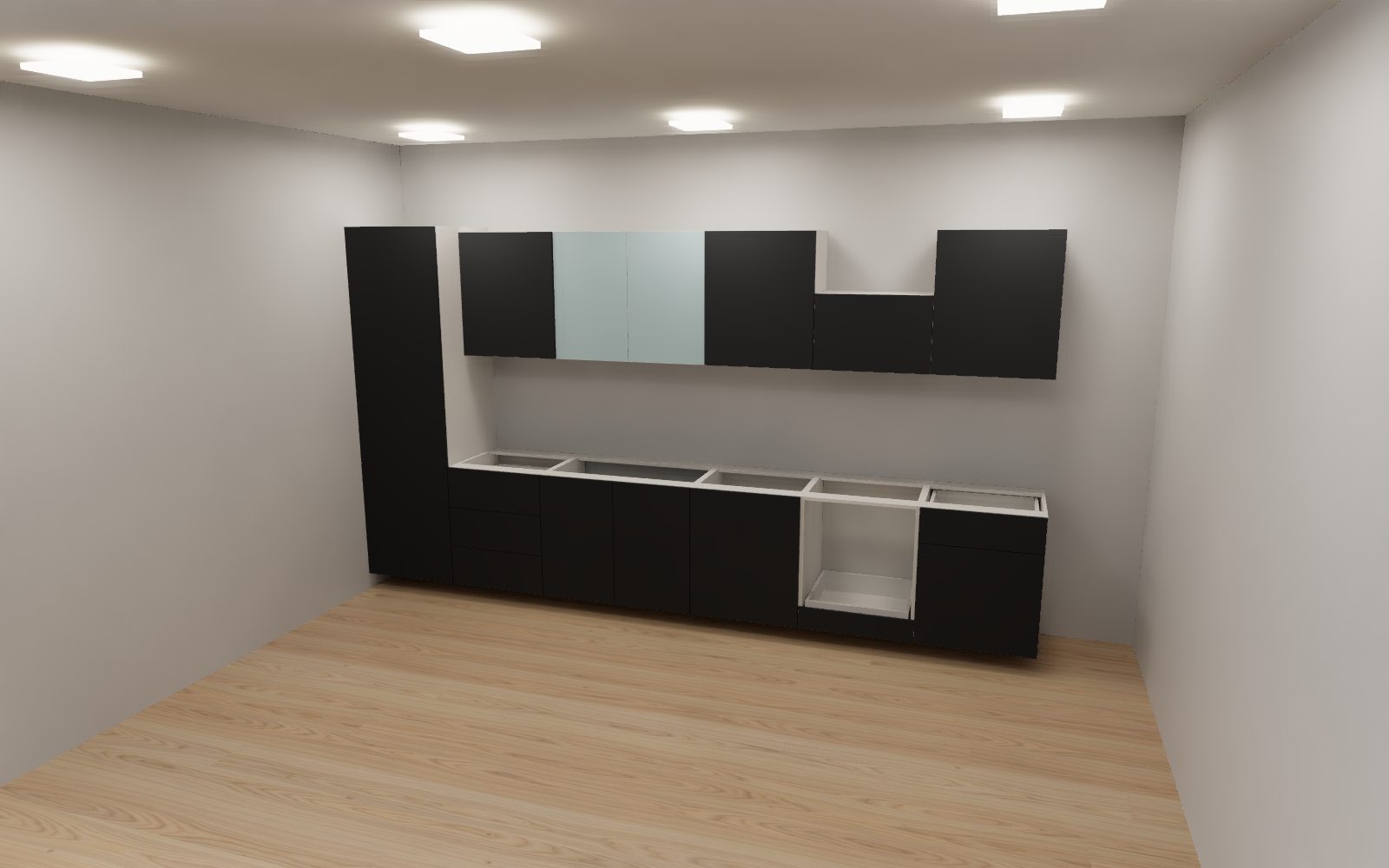
Yes. You can show the design in 3D from every angle and create photorealistic images (renders) to share with your customer.
An order placed by a salesperson first goes to someone with a Planner Admin license for approval. Once approved, it appears in the Production tab; the engineering office opens it read-only and sends it to SOLIDWORKS. Files are named after the order number, and the master files in your SWOOD library stay unchanged.
The desktop Planner keeps working offline for up to 7 days after the last successful license check. Saving to the cloud, quotes and orders need a connection.
Both. Sales and production teams use the Windows desktop app, website visitors use Planner Web, and users and licenses are managed in the web-based company panel. All of them share one account and one catalog.
Accounts are created by invitation only, with a company e-mail address. Sign-ins to the company panel and the desktop app are protected by two-step verification; when someone leaves, you revoke their access and hand their projects to a colleague.
Set the visitor button to “Add to cart”: the request arrives in your panel with a delivery address, and Planner also passes the cart details to the page it is embedded in. We will work out together how to connect it to your own e-commerce setup.
Planner Web is licensed per company; Sales, Production and Admin are per user. You assign licenses to people in the company panel, take them back when needed and request more from the same place. Fill in the form for pricing.
Yes. We offer catalog setup, administrator and sales training, and technical support — see our Training and Technical Support pages. New versions install over the existing one, and projects, the catalog and settings are kept.
References
We work with companies across many industries that share our goal of efficiency, quality and sustainable success in production.
Design · Sales · Production
Let’s work out together how MAGEN Planner should be set up for your catalog and sales process.